

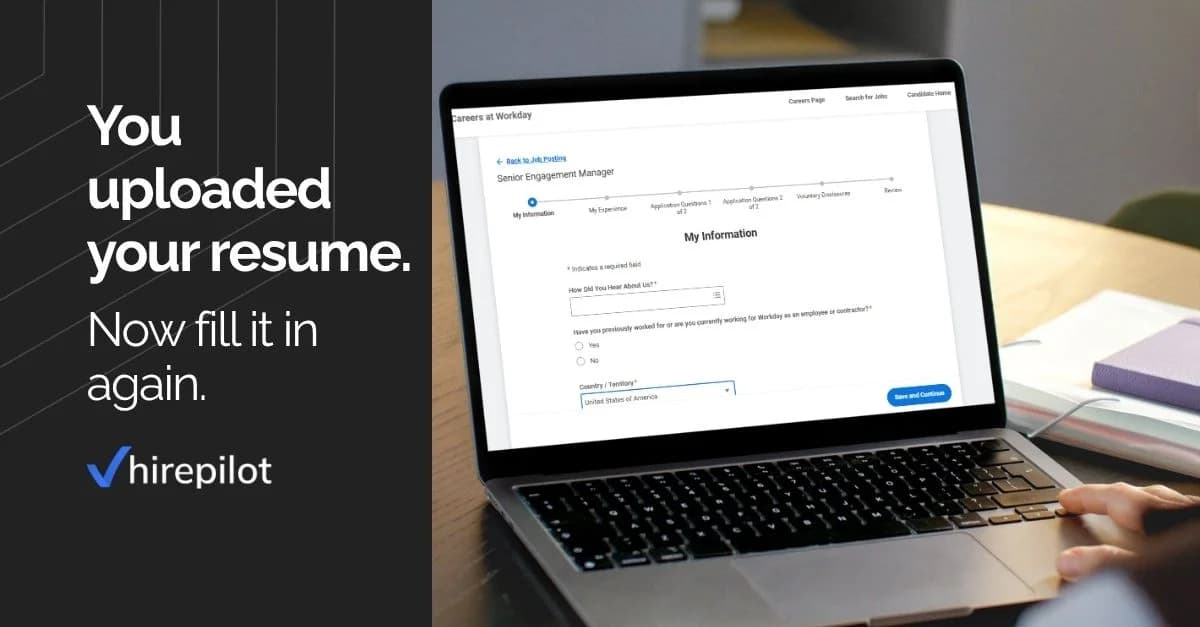

If you have ever applied for a job through Workday, you know the experience. You upload your resume and expect the system to take it from there. Instead, it asks you to manually re-enter every job title, every employer, every start and end date, then references, work authorization, and a screen full of additional fields before you can submit.
That process takes 20 to 40 minutes per application. For anyone applying to multiple roles in a week, that time adds up quickly and often leads to rushed answers, incomplete entries, or simply fewer applications submitted.
This guide walks through every section of a standard Workday application, explains where people lose the most time, and covers practical ways to move faster without sacrificing quality. It also covers what to do after you submit, which is where most job seekers leave opportunity on the table.
What is a Workday application
Workday is an enterprise software platform used by thousands of large employers to manage HR, payroll, and recruiting. When a company hires through Workday, candidates apply through a standardized portal that the employer hosts, usually at a URL that includes the company name.
Because Workday powers recruiting for so many organizations, the application structure is largely consistent across employers. Learning how the system works once means you can move through future applications significantly faster.
Workday is not a job board. You will not find open roles by searching Workday directly. Employers list positions on their own careers pages or on job boards like LinkedIn and Indeed, and those listings redirect you to a Workday application portal when you click apply.
According to Workday's own documentation, the platform is used by more than 10,000 organizations globally, which means a significant portion of corporate job applications go through this system. Understanding it is a practical skill for any active job seeker.
What to prepare before you open the application
The fastest way to complete a Workday application is to gather everything you need before you start. Stopping mid-form to look up a reference's phone number or confirm your graduation year slows the process and increases the chance of errors.
Have the following ready before you open any Workday portal:
- Your resume file. Upload a clean, updated version. Workday will parse it and attempt to pre-fill fields. The better formatted your resume, the more accurate the parsing.
- Exact job titles and employment dates. Month and year for each role. Workday requires specific date formatting and will flag incomplete entries.
- Education details. Degree type, institution name, field of study, and graduation year for each entry.
- Reference contact information. Full name, current title, company, email address, and phone number for two or three references. Some Workday portals request these at the application stage.
- Work authorization status. Whether you are authorized to work in the country and whether you require visa sponsorship. This appears in nearly every Workday application.
- A cover letter if the role requires one. Some portals include an optional or required upload field. Prepare one in advance rather than writing it under time pressure.
Having this information in one place, whether in a document or a saved profile, means you are not pausing mid-application to search for details.
How to apply on Workday: a section-by-section walkthrough
Most Workday applications follow the same five-step structure. Here is what to expect in each section and how to move through it efficiently.
Step 1: My information
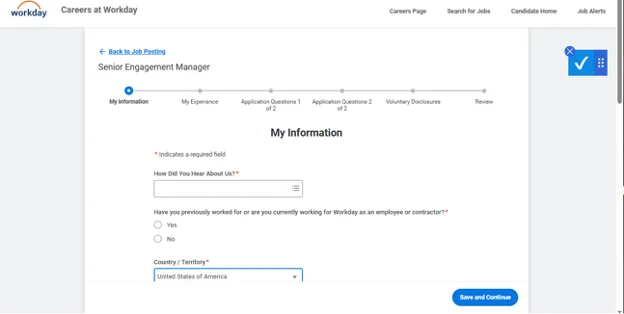
This section collects your name, phone number, email address, and mailing address. It is the quickest section to complete but requires attention to formatting.
Workday separates address fields into multiple inputs (street, city, state, postal code, country), so do not paste a full address into a single field. Fill each input individually.
If you have applied through Workday before, check for a sign-in or profile import option at the top of the portal page. Some employers allow you to pull from a saved Workday candidate profile, which can pre-fill this section automatically.
Step 2: My experience
This is the most time-consuming section. After uploading your resume, Workday will attempt to parse your work history. Do not assume the parsing is accurate. The system frequently misreads job titles, truncates employer names, and pulls incorrect dates.
Review every parsed entry before moving to the next section. Correcting errors at this stage is faster than catching them during the review step.
A few things that help here:
- Enter your most recent role first. Workday lists experience in reverse chronological order.
- Keep job description entries brief. Two or three specific accomplishments per role are enough. Workday truncates long entries.
- Double-check employment dates. A mismatch between your resume and what Workday shows is a common parsing error.
- Add skills in the designated field if the portal includes one. Some employers filter candidates by skill keywords at the ATS stage.
Step 3: Application questions
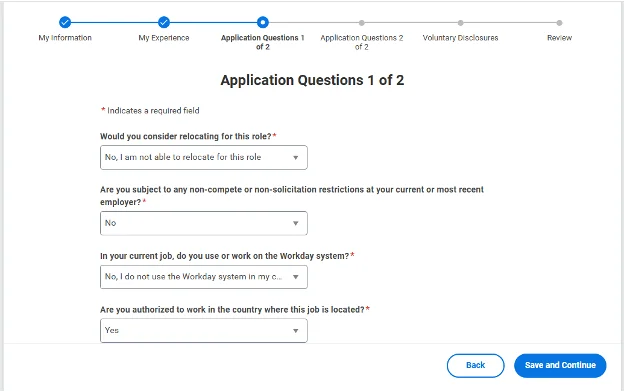
These are questions added by the employer, and they vary significantly by role and company. They range from simple yes or no questions about certifications or minimum qualifications to longer written responses about your experience and motivation.
Read each question fully before answering. Some contain multiple parts. Answering only the first part is a common mistake that weakens your application at the screening stage.
For written responses, use specific examples rather than general statements. A response like "I have strong project management skills" tells a screener nothing. A response like "I managed a cross-functional team of six across three time zones to deliver a product launch on schedule" gives them something to evaluate.
These questions are where differentiation happens. The resume section is largely standardized. The application questions are where your judgment and communication skills become visible.
Step 4: Self-identify
This section collects voluntary demographic information including gender, ethnicity, veteran status, and disability status. All fields are optional and your responses do not affect your application outcome. Employers use this data for equal opportunity compliance reporting.
You can select "I prefer not to answer" for any field. Do not skip the section entirely, though. On some portals, leaving it incomplete prevents you from advancing to the review step.
Step 5: Review and submit
Workday displays a summary of your full application before submission. Use this screen to verify your resume uploaded correctly, your contact information is accurate, and your experience entries are complete.
Once you submit, most portals send an automated confirmation email. Save that email. It contains your application reference number and a link to check your status later.
How autofill tools reduce Workday application time
Even with solid preparation, completing a Workday application manually takes 20 to 40 minutes. Across ten or twenty applications in a week, that is several hours spent on data entry rather than on the parts of your search that actually move things forward.
Autofill extensions work by storing your profile information and populating application fields automatically as you open each form. You review the pre-filled entries, adjust where needed, and submit. The repetitive manual entry disappears.
HirePilot's autofill works on Workday, LinkedIn Easy Apply, and Indeed. When you autofill an application through HirePilot, the role is automatically saved to your job tracker using a Kanban board layout, so your search stays organized without any extra steps. The setup process and how each field maps across different portals is covered in detail in HirePilot's autofill documentation if you want to understand exactly how it handles Workday's form structure.
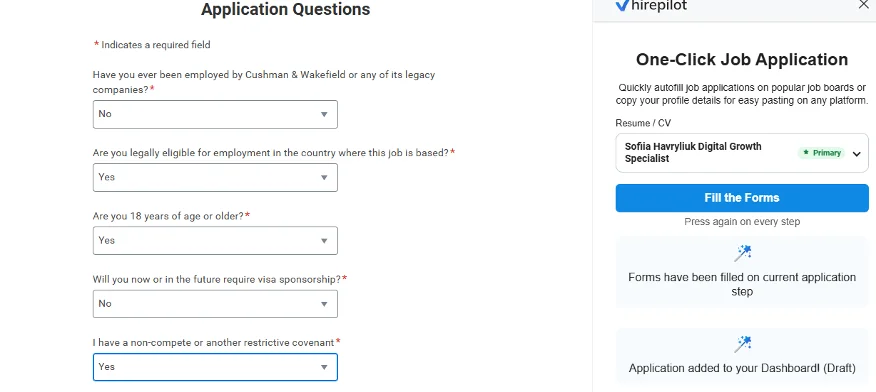
The more important differentiator is what comes after the application. Most autofill tools stop at the form. HirePilot includes a recruiter outreach feature that lets you find the hiring manager behind a role and send a personalized, AI-generated message on the same day you apply. Submitting the form and reaching out directly to the right person on the same day is a combination most applicants never use.
You can explore all three features at hirepilot.co.
What to do after you submit a Workday application
Most applicants submit and wait. That is a mistake, especially in a competitive hiring environment where dozens of candidates may have applied to the same role.
Check your application status
Workday updates your status as the hiring team moves through their process. The three most common statuses are "In review," "Under consideration," and "No longer being considered." Each has a specific meaning in how Workday moves candidates through its pipeline, and knowing what they signal helps you decide when to follow up and when to move on.
Status updates can take days or weeks depending on how actively the employer is reviewing candidates. Checking once or twice a week is sufficient. Checking more frequently does not accelerate the process.
Hiring timelines vary significantly by company and role. According to SHRM, the typical time from application to hire runs just under 28 days, which means a status that has not changed in two weeks is not necessarily a signal that your application was overlooked.
Follow up directly
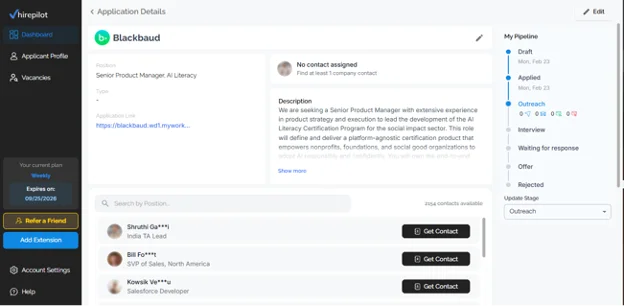
If two weeks have passed with no update, reaching out to the hiring manager directly is a reasonable next step. A short, professional message that references the role you applied for and adds one specific reason you are a strong fit is more effective than a generic follow-up.
Finding the right person to contact is the harder part. LinkedIn is the most reliable place to identify the recruiter or hiring manager. Search the company name alongside the job title or department and look for profiles with recruiting or people operations in their title. Understanding how Workday's applicant tracking system works from the employer side also helps you anticipate where you are in the pipeline and frame your follow-up more accurately.
Keep your applications organized
One of the most common problems in an active job search is losing track of what you applied for, when you applied, and what the next step is. A spreadsheet works to a point, but it requires manual updates and becomes difficult to manage at scale.
HirePilot's job tracker automatically logs each application when you autofill it, so your pipeline stays current without extra effort. The Kanban layout makes it easy to see where each role stands and what needs follow-up.
Common mistakes that slow down Workday applications
These are the issues that create the most delays or lead to incomplete submissions:
- Trusting the resume parser. Workday's parsing is inconsistent. Always review every field after uploading your resume rather than assuming the system captured everything correctly.
- Using an outdated resume file. If your resume has not been updated recently, the parsed experience will reflect older roles. Update your file before uploading.
- Leaving required fields blank. Workday marks required fields but does not always flag them prominently. Scroll through the full form before hitting submit.
- Applying on mobile. Workday's mobile experience is technically functional but slower, and some features do not load reliably on smaller screens. Use a desktop browser when you can.
- Not saving progress. Workday allows you to save and return to an in-progress application. Use this feature if you need to stop mid-way rather than leaving the tab open and risking a session timeout.
- Skipping the review screen. The final review step exists for a reason. A misformatted date or a blank field can cause your application to be filtered out before a human ever sees it.
FAQ: How to complete a Workday application faster
How long does it take to complete a Workday application?
Most Workday applications take between 20 and 40 minutes to complete manually, depending on how many sections the employer has configured and how many application questions are included. Applications for senior roles or positions with extensive screening questions can take longer. Using an autofill tool can reduce that time significantly by pre-populating the standard fields automatically.
Can I save a Workday application and finish it later?
Yes. Workday allows you to save your progress and return to an in-progress application. Look for a save option within the portal, typically at the bottom of each section. Be aware that some employers set a deadline for incomplete applications, so do not leave a saved application unfinished for too long.
Why does Workday ask me to re-enter information from my resume?
Workday parses uploaded resumes and attempts to pre-fill fields, but the parsing is imperfect. The system still requires you to confirm and in many cases correct the information it pulls. This is by design, as the employer's ATS needs structured data in specific fields, not just the free-form text of a resume document.
How do I make my Workday application stand out?
The application questions section is where most candidates differentiate themselves. Unlike the work history fields, which are largely standardized, the written responses give you space to show specific judgment and relevant experience. Answer each question with a concrete example rather than a general claim, reference details from the job description where possible, and keep responses concise. Reaching out to the hiring manager directly on the same day you apply is the other lever most candidates never use
Is there a Workday autofill extension?
Yes. Browser extensions built for job seekers can detect Workday application forms and fill them using your saved profile. HirePilot works as a Workday autofill extension on Chrome and handles LinkedIn Easy Apply and Indeed as well, so you are not managing separate tools for each platform.
Can I autofill a Workday application?
Yes. Autofill extensions like HirePilot are built to work with Workday's form structure and populate standard fields automatically, including contact information, work history, education, and skills. You review the e ntries before submitting, but the manual re-entry is eliminated. HirePilot also logs each completed application to a job tracker automatically so your search stays organized without extra steps.
Final thoughts
A Workday application is not a fast process by design. The system is built to serve employers, not applicants, and it reflects that priority in every extra field and confirmation step it adds.
What you can control is your preparation, your approach to each section, and what you do after you submit. Gathering your information in advance, reviewing parsed fields carefully, giving specific answers to application questions, and following up directly with the hiring manager are all actions that improve your chances without requiring any additional time waiting.
For anyone applying to multiple roles at once, autofill tools remove the friction from the form itself so more of your time goes toward the parts of your search that create real differentiation. HirePilot covers both the autofill and the recruiter outreach in one tool. You can learn more at hirepilot.co.
Find your next job faster - without the chaos
Spend minutes, not hours, on applications. Stay organized, follow up confidently, and get noticed sooner.
Share this article