

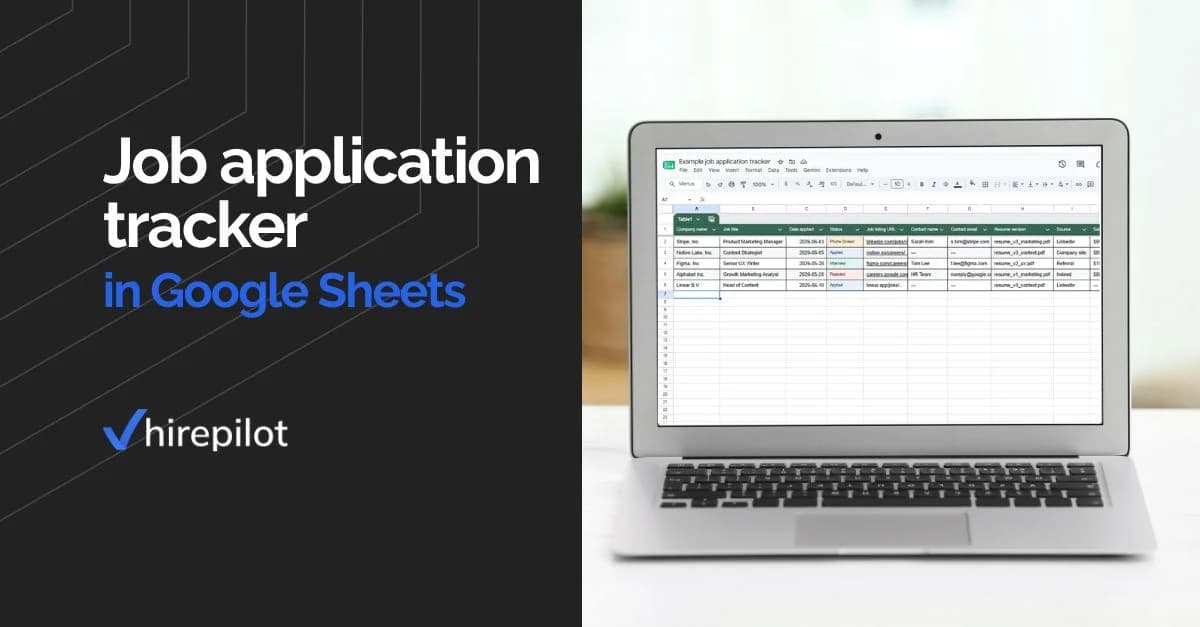

You applied to a job two weeks ago. A recruiter just emailed you. You open your inbox, then your browser history, then three separate tabs trying to find the original listing. You cannot remember which version of your resume you submitted or whether you even wrote a cover letter. The conversation starts on the back foot before you say a word.
This happens to almost every active job seeker who does not have a system. The job search moves fast, companies respond at unpredictable intervals, and your memory is not designed to track dozens of parallel applications at once. A job application tracker is not a nice-to-have. It is the difference between a composed follow-up call and a scrambled one.
Google Sheets is the most accessible tool most people already have access to. It is free, shareable, works on any device, and flexible enough to build a tracker that matches exactly how you search. This guide walks you through why you need one, what to put in it, how to use a free template, and where Google Sheets reaches its limits.
Why you need a job application tracker
Sending applications without tracking them is like navigating without a map. You might get somewhere, but you have no idea how far you have come, which roads are closed, or where to turn next.
A tracker gives you a live picture of your pipeline. You can see how many companies are at the phone screen stage, which roles have gone silent, and which applications you sent out more than two weeks ago without any response. That data helps you make smarter decisions, like whether to follow up, pivot your target companies, or adjust your resume.
The psychological benefit matters too. A visible pipeline reduces the anxiety of not knowing. When you can see twelve active applications in different stages, the silence from one company feels less personal and more like the normal randomness of hiring timelines.
Organized job seekers also interview better. When a recruiter calls, you can pull up exactly what you applied to, the job description, the hiring manager's name, and the notes you wrote on the day you applied. That preparation reads as professionalism.
What columns to include in your tracker
The exact columns depend on how detailed you want to get, but there is a core set that every tracker should include regardless of tool or format.
The essential columns
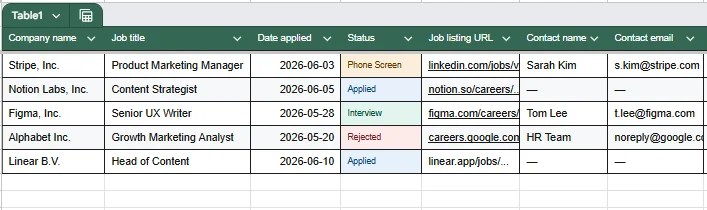
Company name is obvious, but make sure you use the full legal name of the employer, not just the brand. This matters when you are researching the company or looking it up on LinkedIn.
Job title should match the title in the listing exactly. Recruiters sometimes reference the req number or exact title in their outreach, and you want to match immediately.
Date applied tells you when to follow up. A common guideline is to follow up seven to ten business days after submitting if you have not heard anything. Without this date, the follow-up becomes guesswork.
Application status is the most-used column in the entire tracker. Common values are: Applied, Phone Screen Scheduled, Phone Screen Complete, Interview Scheduled, Interview Complete, Offer, Rejected, and Withdrawn. Use a dropdown in Google Sheets for this column so you are always working with consistent labels.
Job listing URL is critical. Listings disappear from job boards within days of being filled or paused. If you save the URL and the posting goes down, you at least have the link to try a cached version or the Wayback Machine.
Contact name and email tracks who you have been in touch with. If you reach out to a recruiter or hiring manager proactively, log their name and contact here so nothing gets lost.
Resume version used helps you understand which version of your resume is generating callbacks. If all your phone screens are tied to a specific resume version, that is a strong signal.
Notes is a freeform column where you drop anything relevant: specific things mentioned in the job description, names of interviewers, things you want to research before a call, or anything that felt off. Treat it as a journal for each application.
Optional columns worth considering
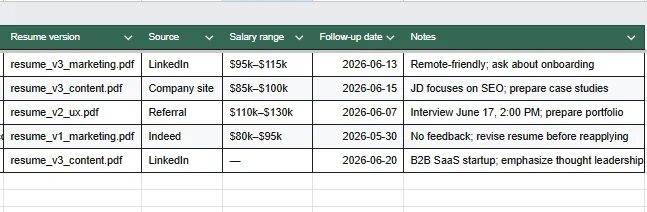 Source tracks where you found the listing, whether that was LinkedIn, Indeed, a company careers page, or a referral. Over time, this tells you which sources are actually producing interviews and which are wasting your time.
Salary range captures the range listed in the posting or shared in a recruiter call. This anchors your negotiation and helps you compare offers if multiple come in at once.
Follow-up date is a calculated reminder column. You can use a formula like =A2+10 if column A is your date applied, and then sort or filter by this column to see what needs attention this week.
How to set up a Google Sheets job application tracker
Open a blank Google Sheet and create the following headers in row 1: Company Name, Job Title, Date Applied, Status, Job URL, Contact Name, Contact Email, Resume Version, Source, Salary Range, Follow-Up Date, Notes.
Freeze row 1 by selecting it, then going to View and choosing Freeze. This keeps your headers visible as the list grows.
For the Status column, click the column header to select it, then go to Data and choose Data Validation. Select "List of items" and enter your status options separated by commas. This creates a dropdown that keeps entries consistent and makes filtering easy.
Apply conditional formatting to the Status column to color-code entries. Use green for Offer, red for Rejected, yellow for Phone Screen, and blue for Applied. This gives you a visual heat map of your pipeline at a glance.
Create a second tab called "Pipeline Summary." Use COUNTIF formulas to automatically count how many applications are in each status. For example, =COUNTIF(Sheet1!D:D,"Applied") gives you a live count of open applications. Add a simple bar chart from this data and you have a dashboard that updates every time you add a row.
Sort by Follow-Up Date every Monday morning. Anything that is past its follow-up date and still sitting at Applied status is a candidate for a follow-up email or a mental close-out.
Free Google Sheets job application tracker template
Rather than building from scratch, you can copy a ready-made template. Search Google Sheets template gallery for "job application tracker" and you will find several. Alternatively, make a copy of any shared template you find online and customize the columns to match the structure described above.
When you copy a template, the first thing to do is delete any sample rows and reset any formatting that does not match your workflow. A template you do not customize becomes clutter fast.
The most important step after copying is making the Status dropdown your own. Generic templates use generic statuses. Your tracker should reflect the actual stages of your target companies' hiring processes, which vary by industry and company size.
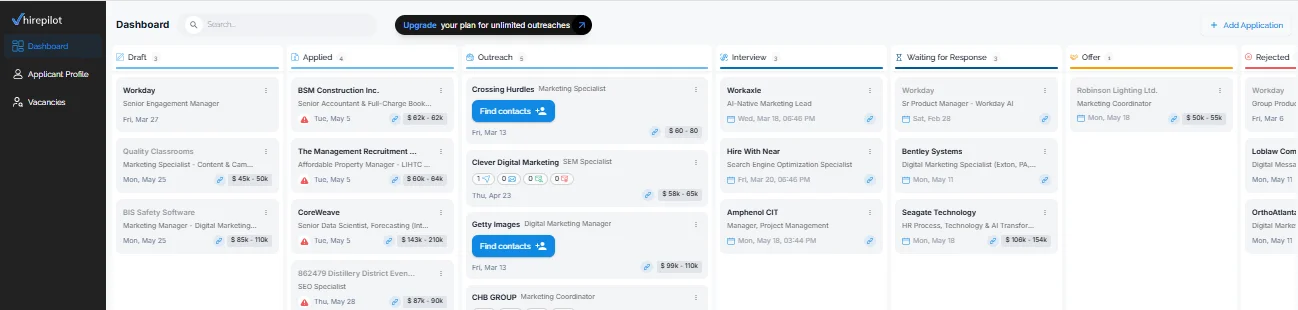
If you use HirePilot's job tracker to organize your search, you get a Kanban board that works alongside automatic application logging, so you can visualize your pipeline without building anything from scratch.
How to keep your tracker updated
The hardest part of any tracking system is the habit, not the setup. Most people build a tracker, use it for a week, and then fall behind by two or three applications. Then catching up feels like too much work, so they stop.
The fix is a daily two-minute rule. Every time you apply to a job, open the tracker and add that row before you close the browser tab. Not later. Not at the end of the day. Immediately. The URL is right there, the title is right there, and the date is today. This is the only moment when entering the data takes under ninety seconds.
Set a weekly review on your calendar for twenty minutes. During this review, update statuses, move anything that has progressed, add follow-up notes, and check which applications are past their follow-up date. Think of it as a standing meeting with yourself.
Archive or hide rejected applications rather than deleting them. Knowing where you applied six months ago is occasionally useful, and seeing a long archived list is a reminder that the search is a numbers game.
Google Sheets vs. Excel vs. Notion for job tracking
The most common question people ask when setting up a tracker is which tool to use. Each has real tradeoffs.
Job application tracker in Google Sheets
Google Sheets works anywhere, syncs automatically, and is free. Collaboration is easy if you have a career coach or mentor reviewing your search. The main limitation is manual entry. Every application requires you to open the sheet and type everything in yourself.
Job application tracker in Excel
A job application tracker in Excel follows the same logic as Sheets. The advantage is more powerful formula support and offline access. The disadvantage is that changes do not sync automatically unless you are using OneDrive, and sharing requires more effort. Excel is a good choice if you already live in the Microsoft ecosystem and prefer desktop software.
Job application tracker in Notion
Notion offers a more visual experience. You can switch between a table view, a board view, and a calendar view on the same data. The tradeoff is that Notion has a steeper learning curve, and its free plan has some limitations on history and file uploads. For people who already use Notion for their personal productivity system, it is a natural fit. For everyone else, the setup time is higher than Google Sheets for the same outcome.
The honest comparison is this: all three tools require manual data entry every single time you apply. That friction compounds across a job search involving dozens of applications.
Why you still need a follow-up system alongside your tracker
A tracker without a follow-up workflow is just a log. The value comes from acting on what the tracker tells you.
When an application hits its follow-up date with no response, send a brief, professional email to the recruiter or hiring manager. Keep it to three sentences: who you are, what you applied for, and a genuine question about the timeline. This is not chasing. It is demonstrating interest.
Following up after a job application also gives you information. If you follow up on ten applications and six are already closed without notification, that tells you something about the company's communication standards. Some of that data is useful when you eventually evaluate an offer.
Track every follow-up in the Notes column of your tracker with a date. If you follow up twice and hear nothing, mark the application as Closed or No Response and move on. Spending mental energy on unresponsive applications is a cost with no return.
Control without automation is still manual labor
Here is the part that rarely gets said directly. Google Sheets gives you full control over your job search data. You can customize every column, filter any way you want, and own the spreadsheet forever. That control is real and valuable.
But control without automation means you are doing clerical work on top of an already exhausting process. Every application means opening a new tab, finding the company name, copying the job title, entering today's date, saving the URL, and choosing a status from the dropdown. Multiply that by fifty applications and you have just spent meaningful time doing data entry instead of preparing for interviews.
The manual entry problem is not unique to Google Sheets. It applies to Excel and Notion equally. The tool is not the bottleneck. The bottleneck is that no spreadsheet knows you just applied for a job unless you tell it.
HirePilot solves this differently. When you use HirePilot's autofill to apply on LinkedIn Easy Apply, Indeed, or Workday, the application is automatically logged to your Job Tracker the moment you submit. No copy-pasting. No switching tabs. No catching up at the end of the day. The tracker fills itself while you apply, and the Kanban board updates in real time so your pipeline is always current.
"We built the tracker to work with the autofill, not separately from it. Every time someone applies through HirePilot, that row gets written automatically. Job title, company, date, source. Users tell us they forget it is even happening until they look at the board and see forty applications logged without any manual work." Viktor Shumylo, co-founder, HirePilot
When to move beyond Google Sheets
Google Sheets is the right starting point for many job seekers. If you are applying to a small number of roles carefully, the manual entry overhead is manageable and the flexibility of a spreadsheet is genuinely useful.
The moment to consider a dedicated tool is when the volume increases. If you are applying to ten or more jobs per week, manual tracking becomes a real drag on your time. At that volume, you also need more than a tracker. You need a way to get your application in front of a human, not just through an ATS queue.
HirePilot addresses both parts of that problem. Autofill handles the application form. The Job Tracker logs it automatically. And the Recruiter Outreach feature helps you find the hiring manager and send a personalized AI-drafted message the same day you apply. That combination, fast application submission plus immediate human outreach, is what moves you from a name in a queue to a candidate someone is expecting to hear from.
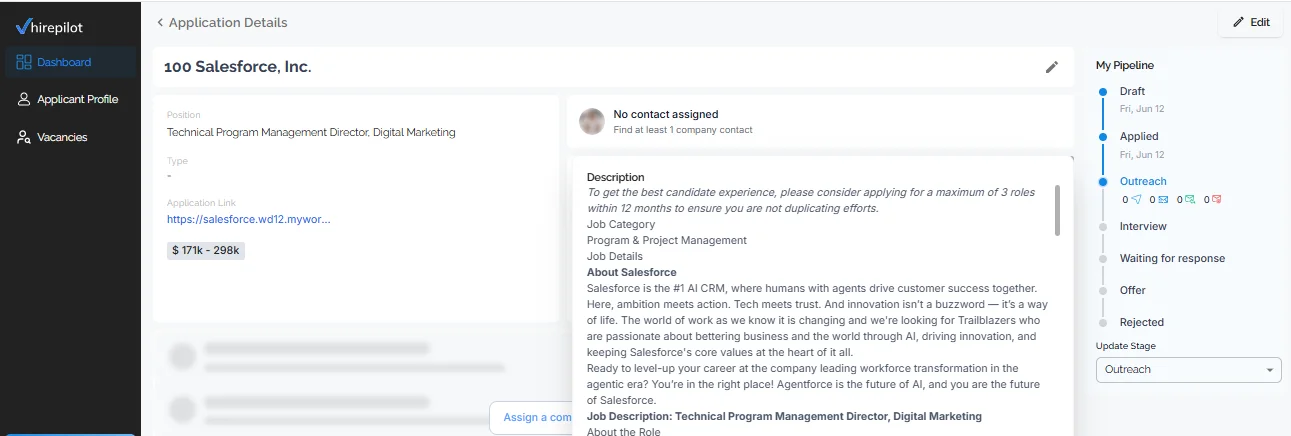
If you started your search with a Google Sheets tracker and it has served you well, that is a good foundation. The next step is removing the manual friction so more of your time goes toward conversations, not spreadsheets.
You began this search frustrated by disorganization. A Google Sheets tracker fixes the disorganization. HirePilot removes the friction that comes after. Start your job search with HirePilot and let the tracker run itself while you focus on the work that actually gets you hired.
Frequently asked questions
What columns should I include in a job application tracker Google Sheets template?
The core columns are Company Name, Job Title, Date Applied, Application Status, Job URL, Contact Name, Resume Version, Follow-Up Date, and Notes. Adding a Source column helps you understand which job boards produce the most interviews over time. Keep the template simple enough that you will actually maintain it.
Is there a free Google Sheets job application tracker template I can use?
Yes. You can search the Google Sheets template gallery or find shared templates on career advice sites. Copy any template you find to your own Google Drive and customize the columns before you start using it. The most important customization is making the Status dropdown match your actual hiring pipeline stages.
How is a job application tracker in Excel different from Google Sheets?
The core structure is identical. Both use rows, columns, dropdowns, and formulas the same way. Excel offers more advanced formula options and works offline natively, while Google Sheets syncs automatically and is easier to share. The key limitation they share is that both require manual data entry every time you apply to a job.
Can I use a job application tracker in Notion instead of Google Sheets?
Notion is a workable alternative, especially if you already use it for personal organization. It supports multiple views including a Kanban board, which makes it more visual than a spreadsheet. The tradeoff is a steeper setup process and a learning curve that Google Sheets does not have. Both tools require manual data entry, which remains the primary limitation regardless of which you choose.
How do I keep my job application tracker updated without falling behind?
Enter each application the moment you submit it, before closing the browser tab. Set a weekly twenty-minute calendar block to update statuses, check follow-up dates, and archive applications that have gone cold. The tracker only stays useful if the data in it is current, and the easiest way to keep it current is to update it in real time rather than in batches.
Find your next job faster - without the chaos
Spend minutes, not hours, on applications. Stay organized, follow up confidently, and get noticed sooner.
Share this article

Viktor Shumylo
Viktor Shumylo is the co-founder of HirePilot, an AI-powered job search platform. He has 10+ years of experience building SaaS products and tools that help job seekers optimize resumes, streamline applications, and land interviews faster.
More articles by Viktor Shumylo