

Beyond the 'submit' button: troubleshooting autofill for Workday applications

August 04, 2026
You finally find a role worth applying to. The job description fits. Your resume is ready. You click "Apply," and Workday loads its familiar multi-step portal. You activate your autofill tool, watch it populate a few fields, and then, nothing. The phone number field is blank. The employment history section shows the wrong dates. One required dropdown refuses to register any value at all, and the "Next" button stays grayed out.
Workday autofill fails most often because Workday renders its application forms with a dynamic JavaScript framework instead of standard HTML fields, so tools that inject data without triggering the page's validation events get treated as if the field is still empty.
This is one of the most frustrating moments in a modern job search, because it feels like the problem is with you or your tools, when the real issue is almost always the structure of Workday's form itself. Workday builds its applications on a dynamic framework that behaves differently from standard HTML forms, and that difference breaks a lot of autofill tools in specific, predictable ways.
This guide covers exactly what causes those failures, how to diagnose them step by step, and how to get your applications moving again. If you have been abandoning Workday applications halfway through, you are not alone, and there are practical fixes for every scenario described below.
Why workday autofill fails differently than other portals
Most job boards use relatively straightforward form fields that any browser autofill or extension can read and populate. Workday does not work that way. It renders its interface using a proprietary JavaScript framework that generates fields dynamically, meaning the fields are not fully present in the HTML when the page loads. An autofill tool that scans the DOM on page load will miss most of them entirely.
On top of that, Workday validates inputs in real time. If a value is injected into a field programmatically without triggering the right sequence of keyboard and focus events, the portal treats the field as empty even when visible text is present. That is why you see your address typed in but the form still thinks nothing is there.
Workday also segments applications into multiple steps, sometimes four to seven pages deep, and each step loads fresh JavaScript. An autofill extension that only fires on the initial page load will not activate again on subsequent steps unless it is specifically built to detect Workday's step transitions.
The dropdown problem: why selects stay blank
Workday's dropdown menus are not standard HTML select elements. They are custom components built in the Workday interface layer, which means clicking a value from a native browser autofill suggestion usually does nothing, or worse, it populates the visible text but does not register a valid selection in the underlying data model.
Extensions built specifically for job application autofill handle this by simulating the full click-and-select interaction rather than injecting raw values. If your current tool is not doing that, dropdowns for fields like "country," "state," "degree type," and "employment type" will consistently fail.
Multi-step navigation and session handling
Another failure point is session management across Workday's steps. Some applications time out if you spend more than a few minutes on a single step, which is common when an autofill tool stalls and you are manually correcting fields. When the session expires, saved progress in earlier steps can reset, sending you back to page one with blank fields.
The fix here is to move through each step with intention. Autofill what you can, manually correct what needs correction on that step, and advance before the session timer runs out. Do not leave a Workday application open in a background tab for extended periods.
Common browser autofill guide: what built-in tools can and cannot do
Chrome, Firefox, and Edge all ship with native autofill that handles basic contact information, including name, email, phone, and address. For simple forms on standard job boards, this works reasonably well. For Workday, it fails almost immediately.
Browser-native autofill uses heuristics to match field names to stored data. Workday's field names are often obfuscated or non-standard, so Chrome might recognize a phone field in one company's Workday instance and miss it entirely in another. There is no consistency across employers because each Workday tenant is configured independently.
Native autofill also has no concept of employment history, education, resume data, or skills sections. It cannot parse your resume and map it to form fields. It can only recall what you have previously typed into similar-looking fields. That is a significant limitation when Workday asks for job titles, employer names, start and end dates, supervisor names, and reason for leaving, across multiple positions.
When to rely on browser autofill vs. a dedicated extension
Browser autofill is useful for the first section of most Workday applications, the personal contact details page. Let it handle name, email, address, and phone if it matches correctly, then verify before advancing. For everything past that first step, you need a tool built specifically for job applications.
Chrome extensions for filling job applications vary significantly in how well they handle dynamic portals like Workday. The key differentiator is whether the extension was engineered to interact with custom JavaScript components rather than standard HTML inputs.
Workday autofill extension compatibility: what to check first
Before troubleshooting a specific failure, run through this checklist. Most autofill extension problems on Workday come from one of five root causes.
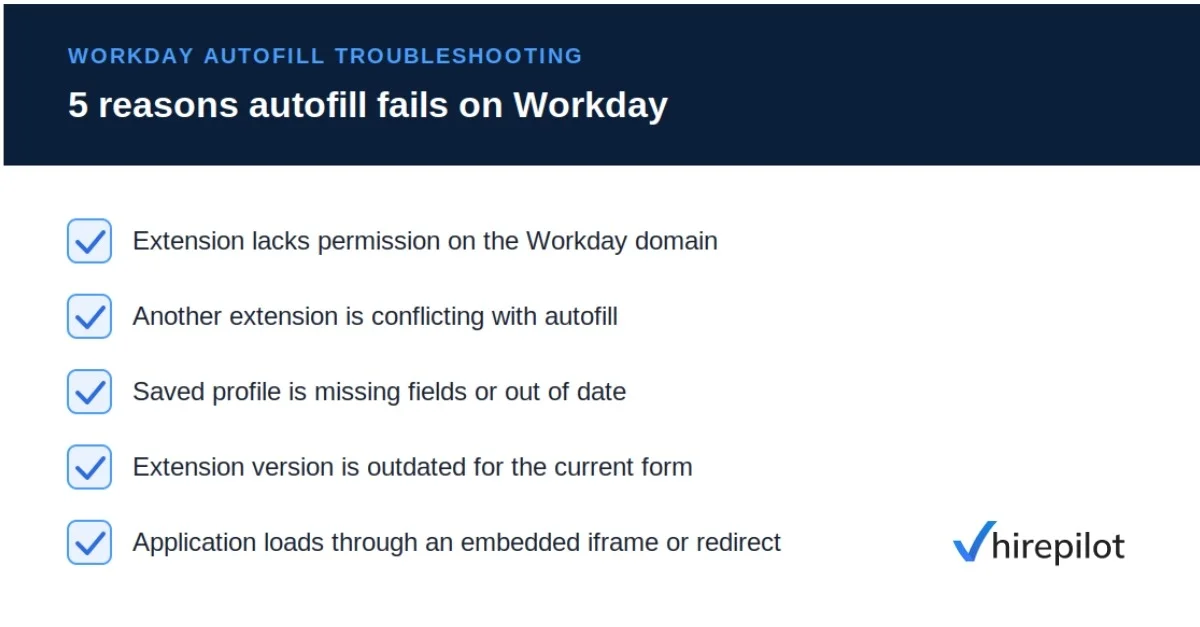
1. The extension is not active on the current page domain. Many extensions require manual permission to run on each domain. Workday applications load on employer-specific subdomains like company.wd1.myworkdayjobs.com. Check your extension settings and confirm it has permission to run on all sites or on the specific Workday subdomain you are using. Chrome's own site access permission settings control this at the browser level, separate from anything the extension itself controls.
2. Conflicting extensions are interfering. Password managers, grammar tools, and even some productivity extensions inject scripts into page forms. These can conflict with autofill behavior. Try disabling all other extensions except your autofill tool, reload the Workday page, and test again.
3. The extension profile is incomplete or outdated. If your profile in the autofill extension is missing fields, like a current employer or degree information, the extension will skip those sections silently. Review your saved profile data and make sure every section is complete.
4. The extension is outdated. Workday updates its interface regularly. An extension that worked last month may break on a newly updated Workday tenant. Check that you are running the latest version of your extension.
5. You are applying through a redirect or embedded iframe. Some companies link to Workday applications from their own careers pages through an iframe or redirect. Autofill extensions often cannot see into embedded iframes. If you are landing on an embedded application view, try copying the direct Workday URL from the address bar and opening it in a fresh tab.
Workday autofill with resume: making document parsing work
Several job application autofill tools now support workday autofill with resume parsing, meaning you upload your resume once and the extension extracts structured data from it to populate form fields. This is significantly more effective than relying on field-name matching alone, because it uses the actual content of your resume to fill employment history, education, and skills fields.
For this to work reliably, your resume needs to be in a clean, parseable format. That means standard section headings like "Work Experience," "Education," and "Skills," no text inside image graphics or tables that cannot be extracted, and no unusual fonts or formatting that create encoding errors. A PDF exported directly from a word processor is usually the safest format.
If the resume parser is pulling the wrong information into a field, the most likely cause is ambiguous formatting in your resume rather than a bug in the extension. Edit the source document to add clearer section labels and re-upload the parsed profile.
How to use the HirePilot autofill extension on Workday
HirePilot's autofill extension is built to handle the specific challenges of Workday and other dynamic application portals. It is not a generic browser autofill tool. It was engineered to fire at each step of a multi-step form, handle Workday's custom dropdown components, and map resume data to the non-standard field names Workday uses across different employer tenants.
When you install the HirePilot extension and build your profile, you enter your employment history, education, skills, and contact details once. The extension stores this as structured data, not just raw text, so it can match each piece of information to the correct Workday field type regardless of how that field is labeled.
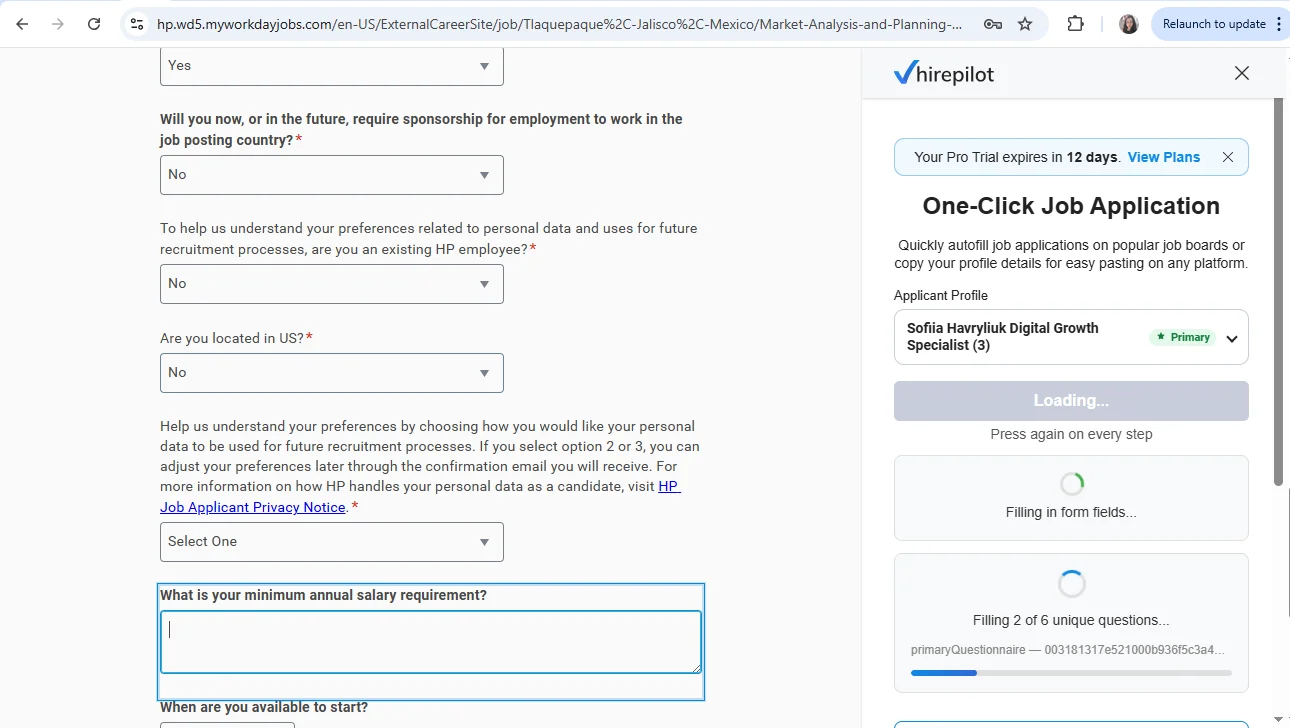
On a Workday application, the process works like this: navigate to the application, activate the HirePilot extension, and let it populate the current step. Review the filled fields for accuracy before advancing. The extension will re-activate on the next step and continue from there. For fields it cannot populate automatically, like custom essay questions or unique employer-specific dropdowns, you fill those manually and move on.
Autofill, tracker, and the bigger picture
One of the most practical aspects of HirePilot is that the Autofill feature connects directly to the Job Tracker. When you autofill a Workday application, the tracker auto-saves the application to your Kanban board so you always have a record of where you applied, when, and what the current status is. The Job Board feature lets you discover and save jobs from multiple platforms in one dashboard, and the Recruiter Outreach feature helps you find the hiring manager and send a personalized AI-crafted message the same day you apply.
That combination matters because submitting a form is only one step in a successful application. Completing a Workday application faster is valuable, but pairing that with a direct message to the hiring manager is what separates candidates who get interviews from those who disappear into the applicant pool.
Step-by-step troubleshooting for broken Workday autofill
If you are actively stuck on a Workday application right now, work through these steps in order.
Step 1: Refresh the page and retry. Workday occasionally loads in a degraded state that breaks all third-party interactions. A hard refresh (Ctrl+Shift+R on Windows, Cmd+Shift+R on Mac) reloads the full JavaScript environment and often resolves one-off failures.
Step 2: Check extension permissions. Click the extension icon in your browser toolbar and verify it shows as active on the current page. If it shows a warning or inactive state, grant the necessary permissions through your browser's extension management panel.
Step 3: Disable conflicting extensions. Open your browser's extension manager and temporarily disable everything except HirePilot or your chosen autofill tool. Reload the Workday page and test again.
Step 4: Clear the autofill profile cache. Some extensions cache profile data locally and that cached version can become stale or corrupted. Delete the cached profile within the extension settings, reload your saved profile data, and retry the application.
Step 5: Inspect the field that is failing. Right-click the problem field and select "Inspect." Look at the element type. If it is a div or span rather than a standard input element, that confirms it is a custom component. Only an extension built to handle custom Workday components will be able to populate it. If you are using a generic autofill tool, this is the point where you need to switch.
Step 6: Fill that field manually and move on. Some fields on some Workday tenants will never be reliably autofilled by any tool because they are configured in a way that cannot be programmatically interacted with. Identify which fields those are, fill them manually, and focus your autofill tool on the fields it does handle well. The goal is to reduce your total time per application, not achieve 100% automation.
Application productivity: measuring what matters
Troubleshooting autofill can feel like wasted time, but the productivity math still favors it strongly. A Workday application that takes 20-35 minutes without autofill might take 4-6 minutes with even partial autofill assistance. If you are applying to 20 roles per week, that difference is roughly a few hours recovered.
Automating your job search with smart tools is not about removing your judgment from the process. It is about removing the repetitive data entry that adds no value and drains the focus you need for the parts that matter, like tailoring your resume summary, preparing for interviews, and reaching out to the right people.
Workday's application form is not designed for candidates
Here is something that almost no troubleshooting guide will tell you directly. Workday's application interface was built for HR administrators and enterprise IT teams, not for job applicants. Every configuration decision, the custom dropdowns, the dynamic field loading, the multi-step pagination, exists to serve the employer's ATS workflow, not to make applying easier.
That is not a complaint. It is a useful framing, because the same Workday describes its own platform as an enterprise system for managing HR, payroll, and workforce data, not a candidate-facing tool, which means the friction you experience is a byproduct of a B2B product optimized for entirely different users. The autofill challenges you encounter are not random bugs. They are predictable consequences of a system built without candidate experience as a primary design constraint.
Understanding this changes how you approach troubleshooting. You stop looking for the perfect autofill experience and start looking for the fastest path through each specific Workday instance. Some will autofill cleanly. Some will require more manual input. The goal is to build a consistent process for handling both cases without losing momentum.
"The most effective approach is autofill first, then a quick review pass field by field before each step transition. That way you catch mismatches before they compound across four pages of a form." Viktor Shumylo, co-founder, HirePilot
You put in the time to troubleshoot the form, verified your fields, and submitted the application. That is step one. The candidates who consistently land interviews do not stop there. They go straight from submitting the Workday application to sending a direct message to the hiring manager, the same day, before the application gets buried under hundreds of others. HirePilot handles both sides of that equation: the autofill that gets the form done and the outreach tool that gets you in front of the right person. Start your next application at hirepilot.co.
Frequently asked questions
Does workday autofill work with all employer instances?
Workday is a configurable platform, so each employer tenant has different field setups, custom questions, and dropdown options. Standard autofill will work on common fields like contact information across most instances, but employer-specific fields and custom configurations will always require some manual input. An extension built specifically for Workday handles the most common fields reliably while leaving room for you to fill in the rest.
What is the best workday autofill extension for Chrome?
The best extensions for Workday autofill are those built specifically for job applications rather than generic form-filling tools. They need to handle dynamic JavaScript components, multi-step form navigation, and resume data parsing. HirePilot's extension is built for exactly this use case, covering Workday alongside LinkedIn Easy Apply and Indeed in a single unified profile.
How does workday autofill with resume parsing work?
Resume parsing extracts structured information from your uploaded resume file and maps it to form fields by category, such as job title, employer, dates, and education details. The extension uses this parsed data to fill employment history and education sections that native browser autofill cannot handle. For best results, use a cleanly formatted PDF resume with standard section headings.
Why does my autofill extension show fields filled but workday still shows errors?
This happens because Workday validates form inputs through JavaScript events, not just the presence of text in a field. If the autofill tool injects text without triggering the expected focus and change events, the portal registers the field as empty even though text is visible. Extensions that simulate real user interactions rather than injecting raw values avoid this problem. If you see this with your current tool, clicking into the affected field and pressing a key can sometimes trigger the validation event and resolve the error.
Can I autofill workday applications on a Mac with Safari?
Most job application autofill extensions are built for Chrome and Chromium-based browsers like Edge or Brave. Safari extension support exists but the ecosystem is more limited, and Workday compatibility varies. For the most reliable autofill experience on a Mac, using Chrome or Brave with your chosen extension is the recommended setup.
Find your next job faster - without the chaos
Spend minutes, not hours, on applications. Stay organized, follow up confidently, and get noticed sooner.
Share this article

Viktor Shumylo
Viktor Shumylo is the co-founder of HirePilot, an AI-powered job search platform. He has 10+ years of experience building SaaS products and tools that help job seekers optimize resumes, streamline applications, and land interviews faster.
More articles by Viktor Shumylo